
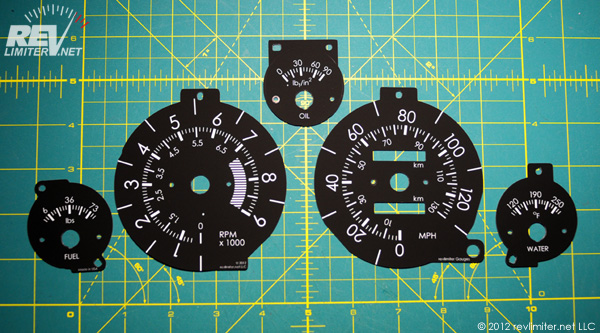
revlimiter Gauges waiting to be installed.
Your Shopping List
- A set of genuine revlimiter Gauges. - You can buy them right here on this site! Check out the revlimiter.net Store. Other gauges may be of lesser quality or not compatible with the steps below. Don't settle for anything but the best!
- Powder-free gloves - These come with your gauges. Because you'll never be able to wipe off finger prints from most gauges, including your old stock ones.
- Pry tools - These come with your gauges. This is to remove your gauge needles without damaging the old gauge faces.
- Needle Stoppers - These come with your gauges. If you have an old set of gauges before I started shipping needle stoppers, you can follow the steps below to liberate the stoppers from your OEM gauges.
- Grab-Its dust cloth - This comes with your gauges. It's normal for gauges to become a bit dusty while you work on them. This cloth gets them looking good before sealing up your cluster.
- Paper towels.
- 2 Phillips screwdrivers, one fine (#0) and one regular (#2).
- Needle-nose pilers - to nibble out plastic from behind your tach face.

Frequently Asked Questions
- I have an NB. Is it the same process?
It's very close. The gauge cluster is much easier to remove from an NB, but there's a little extra work once you get it out. Hit my NB Gauge Install for something like 42 photos of the whole process. - How do I install the needles?
Whoa whoa whoa. Getting a little ahead of things! That section is at the bottom of this document, under Setting the Needles. - Where can I get the gauges in these pix???
I sell them here on this site! Check out the revlimiter.net Store. - I got a smudge on my gauge. Can I wipe it off with rubbing alcohol?
NO!!!! No liquid should ever touch your gauges. Water, rubbing alcohol, spit, nothing. You can wipe the gauges a bit with the included dry dusting wipe, but not with anything else. If you have a smudge, don't worry too much. Try installing the gauges and see if you notice the mark when the plexi is in place. Mistakes like that usually vanish once the gauges are covered and in the shadows of your dashboard. - What's the deal with those funky gauges with non-stock zero positions?
Miatas are quite blessed from the factory in that the tach and speedometer are round with the needle in the middle. The gauges have absolutely no idea where o'clock the needle is pointing. As long as you follow the Setting the Needles section correctly, the gauge will think that zero is zero. It doesn't matter if zero is at the stock 7 o'clock position or anywhere else. It will rotate all the way around and stop before it loops back on itself around the stock 9500ish mechanical hard stop. - How do I know the tach is accurate after doing this?
There are a few tricks, the best of which is the 2500 rpm = 50 mph in 5th gear one. Really, the best way to assure yourself of tachometer accuracy is to take some readings before you crack anything open. Mark on a sheet of paper what speed equals what rpm in a couple of gears. After you're finished with the gauge face install, check against your own notes. - Will this make my odometer read wrong? Can I roll it back while I'm in there?
No. Popping out the cluster and opening up the gauges doesn't affect your odometer at all. And if you try to roll it back, you'll just end up breaking it. I know this from experience. Not trying to cheat an odometer, but because I've been in the Miata world a long time and have had a half dozen gauge clusters in my possession at one point or another. I got a junky one and tried to roll back an odometer one day to see what would happen. I changed one digit and all of the numbers magically lost their alignment. None pointed in the same direction again, no matter what I tried to fix it. - What happens if I don't hack out the extra plastic behind the tach?
That area on the bottom will not light up at all. It will be a perfectly black area at night. This is fine for a stock-style gauge with zero at 7 o'clock, but for any other gauge it will look a bit silly. - Do you have a video to sum up this huge tutorial?
Sadly I don't. I've not got much in the way of video editing skills. But TheCarPassionChannel on youtube does!! Check out Greg's video here. It is quite detailed and yet only runs about 11 minutes. Use both the video and this page to help figure out how to install your new revlimiter Gauges. - Some other shop sent me to this page. Is it cool if I use the info here?
Well, sure! The thing I enjoy most is helping out my fellow Miata enthusiast. However, I'd greatly appreciate it if you would drop me a note and tell me about these other manufacturers who are ripping off my hard work. - This looks scary. Can you do the install?
Of course! I have an installation service available. Please click this link and read about what the installation covers. NA/NB owners will have to still align 4 of the 5 needles yourselves, but all of the hard work is already done for you.
Gauge Cluster Removal

To get access to the gauge cluster, you need to remove two plastic panels - the steering column cover and the gauge hood - and 6 screws. Check out the diagram above and whip out your #2 Phillips screwdriver. Tackle the column cover first.
One thing to note, you do NOT need to remove the metal knee guard that sits in the bottom dash area. The column cover can be removed just fine with that knee guard in place.

After removing the 3-4 screws holding the column cover in place, you will be able to split it in half and set both halves to the side. It snaps together very lightly and shouldn't put up much of a struggle as it comes out.

This is the first part of the job that will present a challenge. After removing the two screws holding the gauge hood in place, you'll have to pull it free. The dash is holding onto it by these three points and the plastic becomes brittle after years of baking in the sun. Pull it straight back (toward your face) in one motion. With luck, you'll not have any breakage.
Some gauge hoods will never break. My own has been in and out of the car probably 50 times over the years (not an exaggeration). Others will break on the first nudge. It's all luck on whether yours breaks or doesn't. They can be glued back together if you're unlucky and there are aftermarket replacement gauge hoods available (check Rspeed) if you're very unlucky.

4 screws are holding the cluster in place. Well, 4 screws and 3 plastic clip connections on the back side. We'll get to those in a minute. For now, just remove these screws and set them aside. Then pull the cluster forward slightly (less than 1 inch or 2 cm) to give yourself a little room in the back.

These are quite easy to remove, actually. With practice. But the first time? They're a huge pain. Just get in and out of the car a few times to figure out where each tab is and then shove your hand behind the cluster and try your best. The two top connections are electrical. The one lower connection is the speedometer's mechanical cable.

I thought this shot might help out a small bit. These are the three connections. You can see the little tabs securing them a bit better in this photo.

Some cars are wired for a rear defroster indicator light (it's the shiny thing above your gas gauge.) The little connector can be problematic to remove. It's covered in foam and it's hard to know where to press.

This is how the defroster pigtail unplugs. A fingernail is enough to press down, but a small screwdriver might work too. And if you scrape off some of the padding, it's not the end of the world.
The connector will come off with your gauge cluster. It's screwed into the front cluster glass.
Stock Gauge Face Removal

Take the cluster out of the car and to a comfortable, dust-free work area. You might consider putting on your gloves now. The gauges I make are not unique or more delicate than others. No gauge face I've ever seen is able to have finger prints or skin oils wiped clean, not even the stock ones. If you think you'll ever want to go back to stock faces, put those gloves on now.

To get at the gauges, you'll need to separate the front cluster cover (the glass) from the rest of the gauges. It is secured by a bunch of little tabs that run around the outside. They are easily popped free with just your fingers. Press down on one tab with your right thumb (I like to start on a top corner) and wedge the cluster glass free with your left hand. It will open up very slightly. DO NOT FORCE IT. Then move to the tab next door and pop it free with your thumb while opening up the glass even more with your left hand. After two tabs are free, you're most of the way there. The rest of the tabs will open easily.
Incidentally, this is a great time to install a new cluster cover. The KG Works and AWD independent clusters will really make your new revlimiter Gauges look great. And if you do both at one time, that's one less time you have to remove that delicate gauge hood.

If your car had the defroster pigtail, you might be a bit confused at this point on removing the front cluster glass. Fear not!
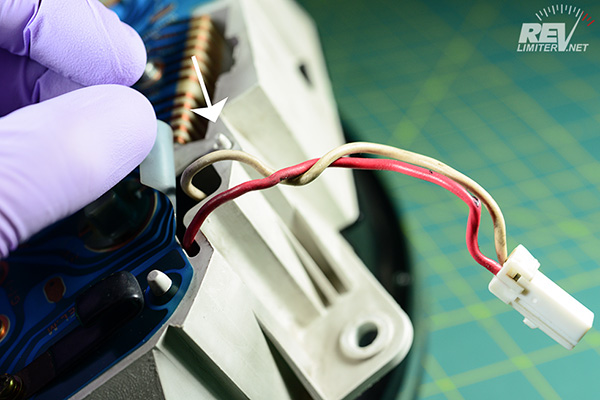
VERY CAREFULLY fold the board back. It's meant to do this, but be careful. The little membrane can be delicate after years of baking in the sun. Put a fingernail or flat screwdriver under the spot with the arrow in the above photo and pop the board free. That will give you access to the port that the pigtail has to move through.

You'll want to help the plug go through the back of the cluster with one hand while lifting the glass with the other. And, if your car doesn't have a defroster, there's nothing stopping you from unscrewing the wiring harness and throwing it in the garbage.

The plug just pulls free with the cluster glass. If you don't have a rear defroster, there's nothing stopping you from unscrewing this little wiring pigtail and never having to worry about it again.

Next, it's time to remove your needles. There are no better tools in the world for this than these small plastic pry tools. I include them with every set of gauges. Using the face mounting screws as a fulcrum, put one pry tool under either side of a needle...

... then just lift up! The most stubborn needle will pop free with very little effort and no damage will come to your gauge face. If you rush, you might scratch the face slightly with the back of the pry tool, but any damage should be under the needle center itself.

Next, remove the small screws holding the gauge faces in place. Be careful, since the metal is quite soft and the screws strip easily. Set the screws aside for re-installation in a moment. Hold the screw driver with both hands so that it doesn't hop off of the screw and scratch the gauge face.

If your new revlimiter Gauges light up in a color other than the OEM green, you'll need to remove each of the four bulbs and remove the little green bulb covers. Some folks call these "light bulb condoms". Whatever you call them, I'd recommend putting them in a baggy with your old gauge faces and saving them. It is very hard to get new little green condoms when you really want them.
If you ordered new bulb covers with your gauges, just slip them on now. They pressure fit on and don't require any tape or glue or anything. Usually you can install them easily with a twisting motion.

If you ordered LEDs with your gauges, now is the time to install them. You'll have to remove your stock bulbs from the twist bases. This is pretty simple with a couple photos. Without the photos, it can be pretty confusing.

The green or black base and bulb come apart. Just pull! It's easiest with gloves on your hands and the stock green cover on the bulb. The two parts should come apart very easily.

Plug the LED bulb into the base. If the fit is loose, take a small screwdriver and pry the connections inside the base out away from the walls slightly. Just enough to give a good fit.
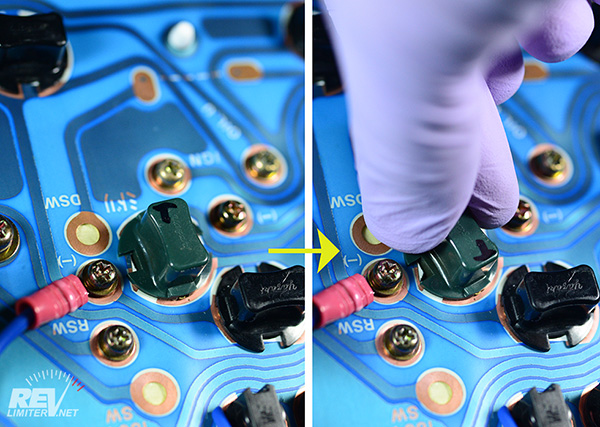
Lastly, you need to know that LED bulbs have a polarity. They can be installed backwards and not light up. This can be beyond annoying to find out after you've tightened the last screw on your gauge install. You should test-light your cluster before you button the car up. Any LEDs that don't light can just be unscrewed, rotated 180 degrees (no need to remove the bulb from the twist base) and reinstalled in the cluster. On the NA, the plug above the temp gauge is the one that controls the lighting.
Tach Indicator Light Removal
- Why does the bottom part of my tachometer stay dark at night?
You need to follow the steps below. The partitions around the three indicator lights have to be cut out. It isn't hard to do this, but if you ignore this step, the bottom of your tach from 7:00 back to 4:00 will not light up.
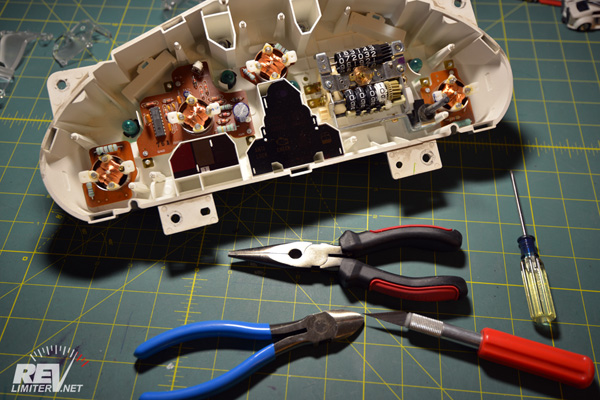
99% of the gauges I sell require this step, even the ones with the needle position at the stock 8:00 angle. Unless you ordered a custom gauge set with indicator lights visible on the tach, you will have to do this. The cluster plastic is easy to chew away. My favorite tools for this are a pair of needle-nose pliers and a pair of wire snips. Don't use a dremel. The dust will get everywhere and be a pain to clean.

Remove the little tinted rectangle to expose the work area. A blade or something slim makes easy work of this. You could also unscrew one of the bulbs and put a thin screwdriver through the back. Remember to reinstall the bulb!
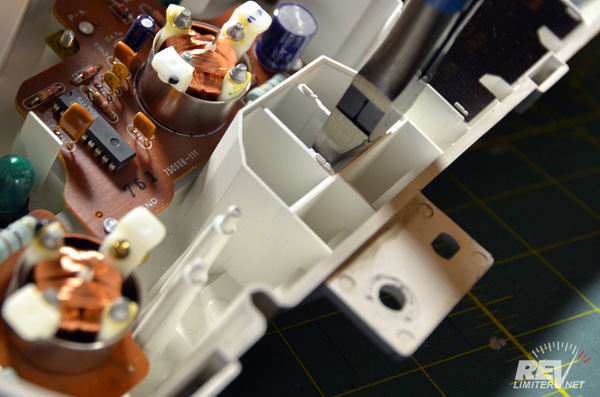
Put on safety glasses. Cut the partitions into slices with your wire snips. Cut each wall so that it's a rectangular shape and you're not struggling to break off a partition with a bend in it. Lots of snips makes this an easy job. For more pix, check out the NB install.

Once you've finished with the wire snips, grab a set of needle nose pliers and pull out the partitions. They will come out very easily since everything is cut into squares. There's a good chance some of them will have come free by themselves.

This is what it should look like when you're done hacking away the walls. Nothing will be left between the light and the bottom of the tach. Even lighting shall be yours!
If you ever want to reverse things and go back to stock gauges, you can easily rebuild the partitions. Buy a set of spark plugs. They come with little cardboard tubes to protect the electrode. Those tubes are just about perfect for masking off the light for each of the three indicators on the tach. Secure the tubes with a few drops of super glue.

When you're done removing the lighting partition plastic, re-install the clear gauge carriers into your cluster. They must be in place for the gauges to work. They help pipe the lighting to the back of your gauge faces.
Gauge Face Installation
PUT YOUR GLOVES ON. You will working with your new gauge faces a lot now. They are extremely resilient to cleaners and the elements, but it is still WAY easier to wear gloves and not have to clean anything than not wear gloves and spend a half hour carefully cleaning fingerprints off your new gauges.

Hold your new revlimiter Gauge face by the edges. Hold the needle stopper with your free hand. Poke the stopper through the face.

If it's hard to get the stopper through the tiny hole, twist the stopper while you insert it. A drilling motion will let the stopper get through the face without much pressure.

The needle stopper should stay in place by friction. If it doesn't, apply a small piece of clear (Scotch) tape to the back of the needle stopper.

Remove the 10 tiny rubber washers from the bag and install them over each gauge screw. These are VERY important.

Screw your new gauge faces into place. Do not over tighten the screws!!! Too much force can destroy the finish on the gauge face. Just get the screws barely tight.

The rubber washers not only allow the gauge face to expand, they also help you to know how much force to apply when screwing the face down. In the above photo, the washer is still round. This is the correct tightness.

The rubber washer will deform and poke out from the screw if you tighten/torque it down too much. If you see a washer poking out, unscrew the fastener until the washer is round again.
I will say that again as this is very important. DO NOT OVER TIGHTEN THE SCREWS!!! You will destroy the finish on your gauge face if you do this. Just BARELY tighten the screws (1 inch lb) so that the screws barely touch the face.
Setting the Needles
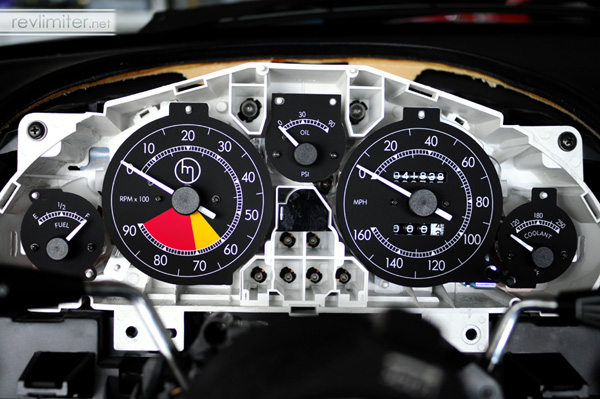
There is no good way to photograph each step of this. Sorry, but this involves a lot of reading. I'll try to make it as easy to understand as possible.
Do not use a lot of force to press the needles into place. If the black needle center contacts the gauge face, it will not be able to spin. A little shove is all that you need.
Speedometer: This is the only gauge needle that you can set while the cluster is on your table inside. The speedometer is self-zeroing. That means you can carefully and gently place the needle on the zero position and probably get it right. So stick it on there very lightly and then spin the needle up to 20 mph or so and let it fall by itself. Did it return to zero? If so, then give the needle a little extra press to make sure it's on there and then call it good. If it didn't return to zero, pull it off and try again.
Take the cluster back out to the car and reinstall it with the glass covering removed. Connect all three inputs on the back of the cluster. I like to also screw in 2 of the 4 cluster mounting screws to hold it in place and keep it from rattling around too much. Then turn the car on.
Oil Pressure: This is usually the second needle I put into place. With the car on and the engine cold, your oil pressure gauge will read pretty high, usually between the 60 and 90 mark. Point the needle to that spot and gently press it on. Not too hard! Rev the engine a bit and verify that the needle goes to (or slightly past) 90 PSI / 6 BAR. If you get it wrong and it starts showing low oil pressure when the engine is hot, you'll want to remove this needle and try again. And, obviously, cars with dummy oil pressure gauges don't really matter. Just put it on pointing at the middle.
Tachometer: When your engine has warmed up enough and you hear it idling normally, pop the tach needle in place with it pointing somewhere around 850 rpm. Next, rev up to your rev limit. Verify that the needle points to this value. I say "this value" since many cars have aftermarket ECUs with non-stock rev limits. For stock cars, it is 7200.
If you have an aftermarket ECU, it is very easy to set the tach needle. Just plug in your laptop and monitor the engine speed. If you see the needle is grossly incorrect, pop it off and try again. But if you don't have this luxury, there is a trick: for cars with the 4.1 rear end (94-97), 50 mph = 2500 rpm in 5th gear. For 90-93 cars with the 4.3 diff, I'm not sure of the magical check point. At any rate, once you're satisfied with the tach needle, you should press it firmly in place.
Water Temp: Once you've finished messing around with the tach needle, your engine should be warm enough to put the water needle in place. The stock position is approximately 11:30 o'clock. Put the needle in place and then press it down firmly.
Fuel: Last but not least, the gas gauge. I like to leave this needle off and drive to the gas station near my house. Then I fill up. Then I drive back to my house and sit in the driveway and put the fuel needle a bit above the F mark. It takes a little over a mile for a full tank of gas to register, so keep that in mind.
Lastly, turn the car off. Keep the cluster glass off and verify that the needles fall to their correct zero zones. If you didn't press the needle on hard enough, you'll have a droopy gauge. I'm talking to you, Mr. Water Temp. The tach and oil gauges both have stoppers. The fuel gauge doesn't fall. The speedometer self zeroes. But the water gauge can droop if the needle isn't pressed on hard enough. Once you're satisfied, give your new gauge faces a quick dusting with the very edge of a clean paper towel (don't use pressure to dust!) and then snap the glass cover in place.
And that's it. It sounds like a lot of work, but really the process is quite straightforward. With a little bit of care, it's very easy to swap out gauges and put everything together with that OEM fit and finish.
Cliff notes: Take everything out. Put on gloves. Put everything back in.
The After-Install FAQ
- My (speedo/tach/etc) needle seems to get stuck. What's going on?
99% of the time, the problem is too much force being used when you installed the gauges. If the black needle center comes into contact with the gauge face, it won't be able to spin. You don't need Hulk-levels of force to install the needles. Just place it on the needle boss (the metal pin) gently and verify that the gauge is reading right. After that, give it a small extra nudge to seat it. Then look at the gauge at an angle to verify there's space between the face and the needle center. - My speedometer needle jumps all around. WTF?
It's time to replace the physical cable that connects the speedometer to the NA's transmission. It's not a fun job, but it's not very complicated. A new speedo cable can be purchased from your local Mazda dealer for around $45 and you can get it installed in about an hour. - My fuel gauge needle doesn't go back to zero after the gauge install?
Yup. And it didn't fall back before the install either! The NA and NB Miatas have fuel needles that don't fall back to zero when you turn the car off. It's supposed to work like that. You just never noticed it before the gauge install. - My water gauge needle is droopy after the install. How do I fix it?
All of the 3 small gauges have an internal needle stopper at about 6:00 underneath the needle center. It's a small plastic thorn that pokes out of the clear gauge holder. Your water temp gauge needs to have the needle pressed on just slightly harder so that it can come in contact with this internal stopper. Raise the needle manually to about halfway and press it on slightly harder. Then let it drop. If it's still droopy, do this again. Just don't let the needle center touch the face or it won't be able to move at all. - Why does the bottom part of my tachometer stay dark at night?
The partitions around the three indicator lights have to be cut out. It isn't hard to do this, but if you don't read the whole tutorial and skip cutting the partitions out, , the bottom of your tach from 7:00 back to about 4:00 will not light up.
Additional Images

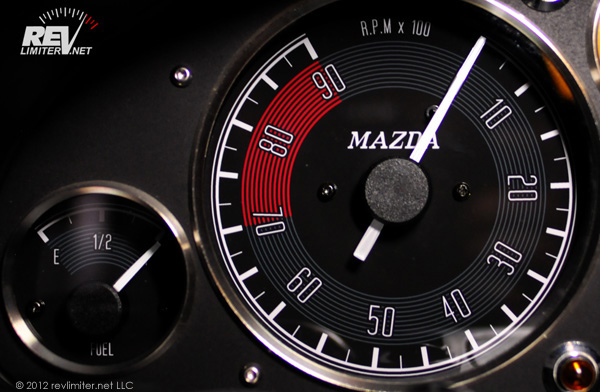
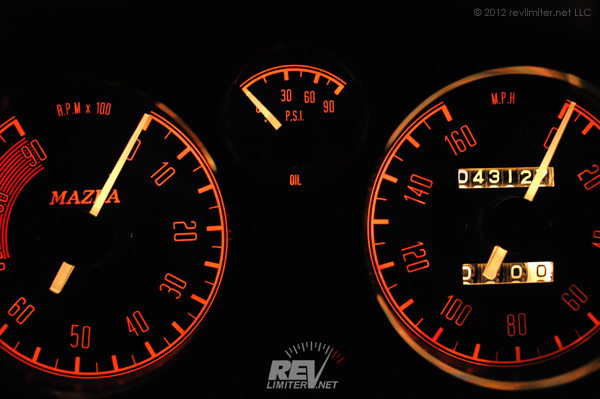
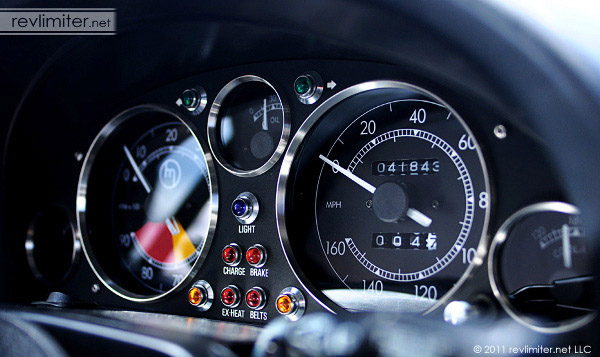
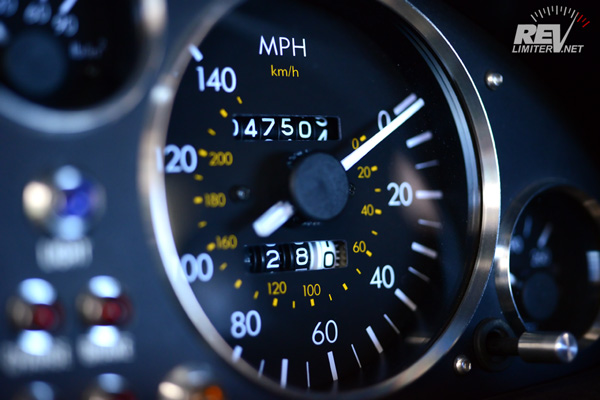
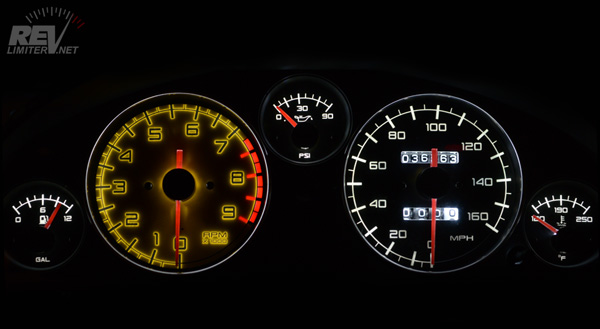
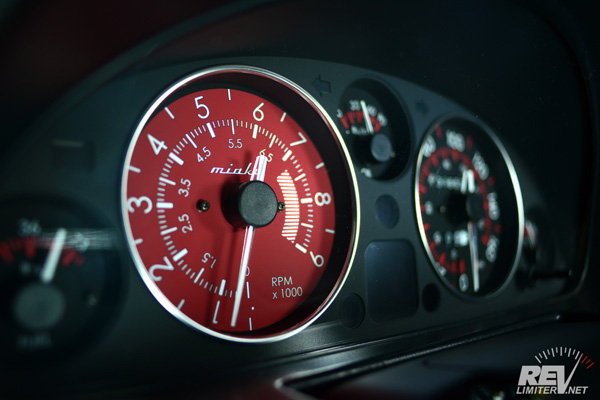
Poor Sharka has worn over a dozen sets of gauges in the past few years. Some extra pix were required.


[ © 1998-2025 revlimiter.net LLC |
Terms of Use |
Privacy Policy ]

Products sold on this site are for Off-road and Competition use only. This website intended solely to provide general guidance on matters of interest for the personal use of the Reader of this Page, who accepts full responsibility for its use. All products as well as information provided "as is," with no guarantee of completeness, accuracy, or timeliness, and without warranty of any kind, express or implied, including, but not limited to, the warranties of performance, merchantability, and fitness for a particular purpose.
Products sold on this site are for Off-road and Competition use only. This website intended solely to provide general guidance on matters of interest for the personal use of the Reader of this Page, who accepts full responsibility for its use. All products as well as information provided "as is," with no guarantee of completeness, accuracy, or timeliness, and without warranty of any kind, express or implied, including, but not limited to, the warranties of performance, merchantability, and fitness for a particular purpose.